CSS - Frontmatter Columns
Setup
Go to Settings, Appearance, and scroll all the way down to the CSS snippets section. You might already have some there, or not. It does not matter for us.
Click on the folder icon. This should open the local folder containing the snippets. Create a new file and give it a name that makes sense to you. For example, frontmatter columns.css. Make sure that the file extension is css. If you don't see your file extensions, click on View, Show, and File name extensions (in Windows Explorer).
Now open the file and copy the CSS code below into it. Save the file, go back to Obsidian and refresh the list of snippets. Enable the frontmatter columns one, and that should do it. If it does not, you may have to restart Obsidian.
Result
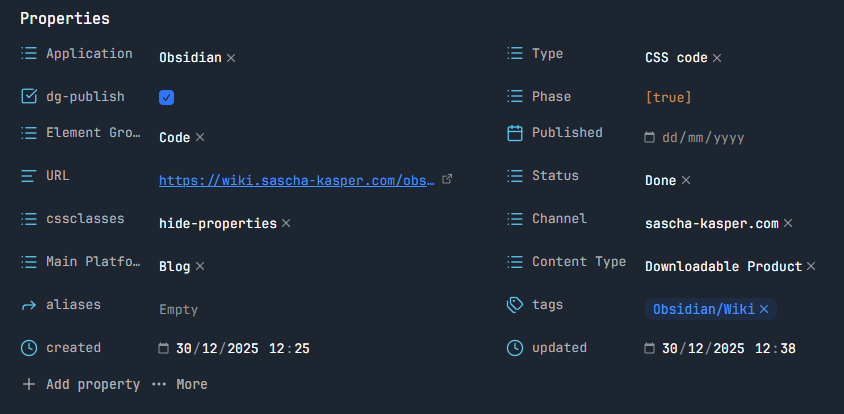
This snippet arranges your frontmatter properties in two columns, except when you are in source mode, of course. It looks like this:
Code
.metadata-properties {
  display: grid !important;
  grid-template-columns: repeat(2, minmax(0, 1fr)) !important;
  gap: 0.5em 1em !important;
}

.metadata-properties > .metadata-property {
  box-sizing: border-box !important;
  display: flex !important;
  justify-content: space-between !important;
  align-items: center !important;
}